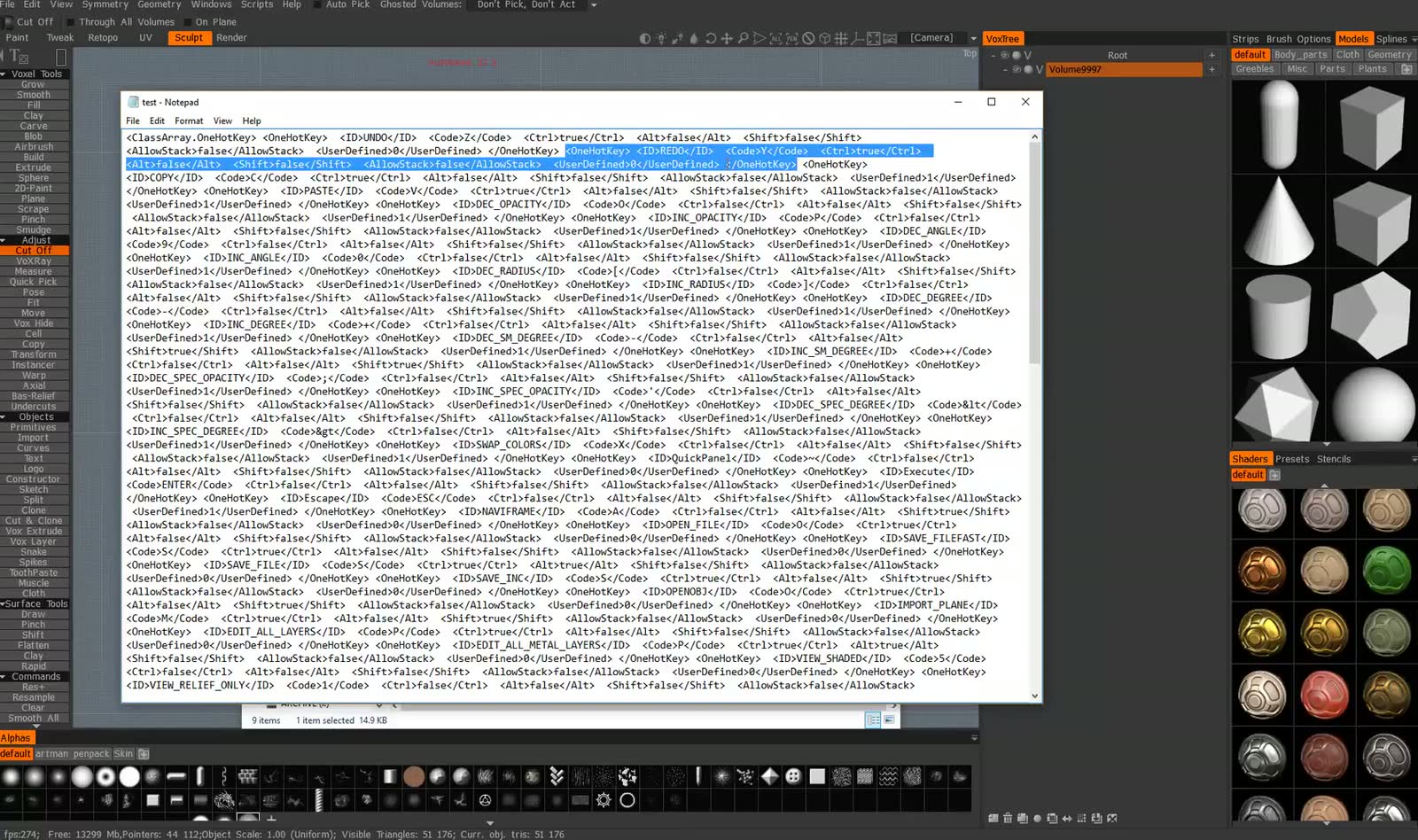
In 3DCoat, Undo is Ctrl+Z, but Redo is Ctrl+Y. Y is quite far from Z on the keyboard, and the much more common combination for Redo is Ctrl+Shift+Z. I really recommend switching from Ctrl+Y to Ctrl+Shift+Z: it’s a much better, much faster workflow.
The usual way to change a hotkey in 3DCoat is to hover over a command and press END. Unfortunately, that doesn’t always work for every hotkey, and I don’t know of an easy way to change Ctrl+Y with it. There is a harder way that does work: save your hotkeys to a file, edit one line, and load the file back.
In short
- Edit › Save Hotkeys to save your current hotkeys to a file.
- Open the file in a text editor and search for
REDO. - In the REDO entry, change
<Code>Y</Code>to<Code>Z</Code>and<Shift>false</Shift>to<Shift>true</Shift>. - Save the file, then Edit › Load Hotkeys and pick it.
- Test: Ctrl+Z undoes, Ctrl+Shift+Z redoes.
Before you start
- A text editor. Notepad is enough; any plain-text editor works.
- A backup. You are about to edit the file 3DCoat reads your hotkeys from. Keep an untouched copy, so you can load it back if something goes wrong.
- Version. This was recorded in 3DCoat 4.x. The current 3DCoat documentation for the Edit menu still lists Redo as Ctrl+Y and still has Save Hotkeys and Load Hotkeys (checked November 2026). If your version can set Redo to Ctrl+Shift+Z with END, use that; this tutorial is for when it can’t.
1. Save your hotkeys to a file
Open the Edit menu. Load Hotkeys and Save Hotkeys are near the bottom. Choose Save Hotkeys and save the file somewhere you’ll find it again, for example a Hotkeys folder next to your projects.
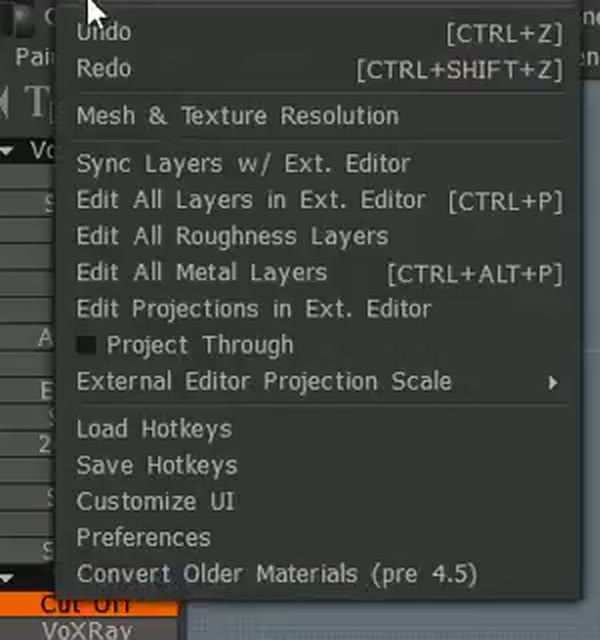
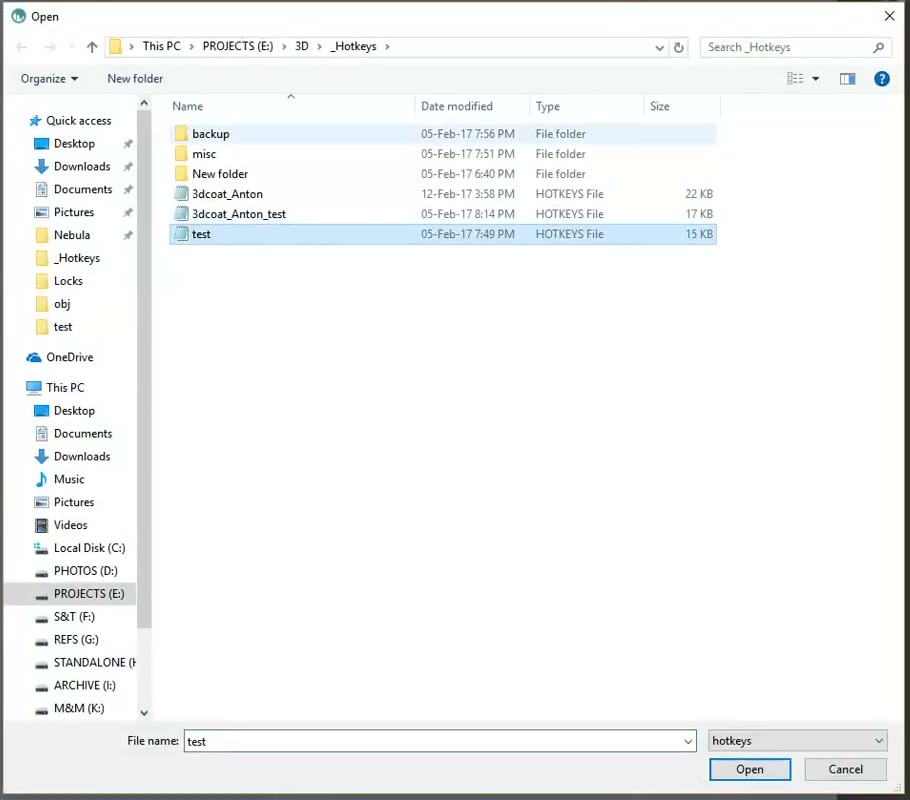
The file contains every hotkey you have, and any new hotkey you assign is recorded in it as well. Saved hotkey files have the .hotkeys extension.
2. Open the file and find the REDO entry
Open the file in Notepad. It is one long block of text and hard to read at first, but it gets easy once you know the pattern.
Every hotkey is one entry that starts with <OneHotKey> and ends with </OneHotKey>. Press Ctrl+F, search for REDO, and you’ll land on this entry:
<OneHotKey> <ID>REDO</ID> <Code>Y</Code> <Ctrl>true</Ctrl> <Alt>false</Alt> <Shift>false</Shift> <AllowStack>false</AllowStack> <UserDefined>0</UserDefined> </OneHotKey>This is what each part means:
| Field | Value | Meaning |
|---|---|---|
ID |
REDO |
The command this hotkey runs. |
Code |
Y |
The key you press. |
Ctrl |
true |
Ctrl must be held down. |
Alt |
false |
Alt is not used. |
Shift |
false |
Shift is not used. |
The modifier fields are simply true or false. Read together, this entry says: Ctrl + Y runs Redo.
Be careful: the entry right before it is <ID>UNDO</ID>, which already uses Z. Leave that one alone.
3. Change Y to Z and turn on Shift
In the REDO entry, change two values:
<Code>Y</Code>→<Code>Z</Code><Shift>false</Shift>→<Shift>true</Shift>
Ctrl stays true. The entry now reads:
<OneHotKey> <ID>REDO</ID> <Code>Z</Code> <Ctrl>true</Ctrl> <Alt>false</Alt> <Shift>true</Shift> <AllowStack>false</AllowStack> <UserDefined>0</UserDefined> </OneHotKey>That is Ctrl + Shift + Z runs Redo. Save the file.
4. Load the file back into 3DCoat
Go to Edit › Load Hotkeys, browse to the file you just edited and open it.
5. Test it
Make a couple of quick edits on any model, then press Ctrl+Z to undo and Ctrl+Shift+Z to redo. Both should work straight away. The Edit menu now shows [CTRL+SHIFT+Z] next to Redo.
Changing other hotkeys the same way
Every hotkey in 3DCoat has the same kind of entry, so you can change others this way too: find the command’s ID, then edit its Code and its Ctrl, Alt and Shift values.
It doesn’t always behave that well, though. When I changed some other hotkeys in the file, 3DCoat sometimes started to bug out. For something simple like Redo it works well. If you edit more, change one hotkey at a time, load and test it, and keep your backup file handy.
Watch the video version (3:08)
Everything above is in the video too, if you'd rather follow along on screen.
Questions
What is the default Redo shortcut in 3DCoat?
Ctrl+Y. Undo is Ctrl+Z. The official 3DCoat documentation still lists both in the Edit menu.
How do you normally change a hotkey in 3DCoat?
Hover over the menu item or tool, press END, then press the new key combination. When that does not work for a command, as it may not for Redo, edit a saved hotkeys file instead, as described in this tutorial.
Which hotkeys file do I edit?
One you save yourself. Edit › Save Hotkeys writes your current hotkeys to a file at a location you choose, and Edit › Load Hotkeys reads it back in.
Can I change other hotkeys this way?
Yes. Every hotkey has its own OneHotKey entry with the same fields. It works best for simple commands like Redo; when I changed some other hotkeys this way, 3DCoat sometimes behaved oddly.
Will Ctrl+Shift+Z for Redo break Undo?
No. Undo is a separate entry (ID UNDO) that keeps Ctrl+Z. Make sure you edit the REDO entry, not the UNDO entry just above it.

Anton Tenitsky is a 3D artist with 15+ years in computer graphics: texture artist on Penguins of Madagascar, work for Gameloft, 3D concept designer on Marvel Rivals, and a long-time 3DCoat educator. See my work on ArtStation.