
Status: Tested on RunPod. I rendered with this template on RunPod on an RTX 5090 and an RTX 4090. The times and costs in this guide come from those runs.
These are the fastest talking avatars I’ve rendered so far. SoulX-FlashHead Pro is a small open model from Soul AI Lab (1.3 billion parameters, Apache-2.0 licence) that turns one portrait and a voiceover of any length into a 512 × 512, 25 fps talking-head video with your original audio.
On an RTX 5090 it needs about 1.8 seconds of GPU time per second of video, roughly $0.04 per finished minute. It’s light enough for consumer cards too, so you can run it locally.
The catch: it was trained on 512 × 512 crops of the face, so you don’t get the full bust of my LTX-2.5 and LongCat setups. Just the face.
In short
- Speed: about 1.8 s of RTX 5090 time per second of video, after a one-off warm-up of 4–5 minutes per run.
- Cost: about $0.04 per finished minute on an RTX 5090; an hour of voiceover for about $2.20.
- Hardware: peaks at 6.4 GB of VRAM. 8 GB cards run it, slower; 12 GB+ is comfortable.
- Output: 512 × 512 face crop at 25 fps. No shoulders, no hands.
- Free template on GitHub, or one click on RunPod.
Speed and cost against my other avatar models
| Model | Framing | Render time per finished minute | Cost per finished minute |
|---|---|---|---|
| FlashHead Pro | Face, 512 × 512 | ~1.8 min (RTX 5090) | ~$0.04 |
| LTX-2.5 | Full bust | ~9 min (RTX 5090) | ~$0.19 |
| LongCat | Half body with hands | ~1 h (H100) to ~1.4 h (RTX PRO 4500, 640 × 640) | $1–4 |
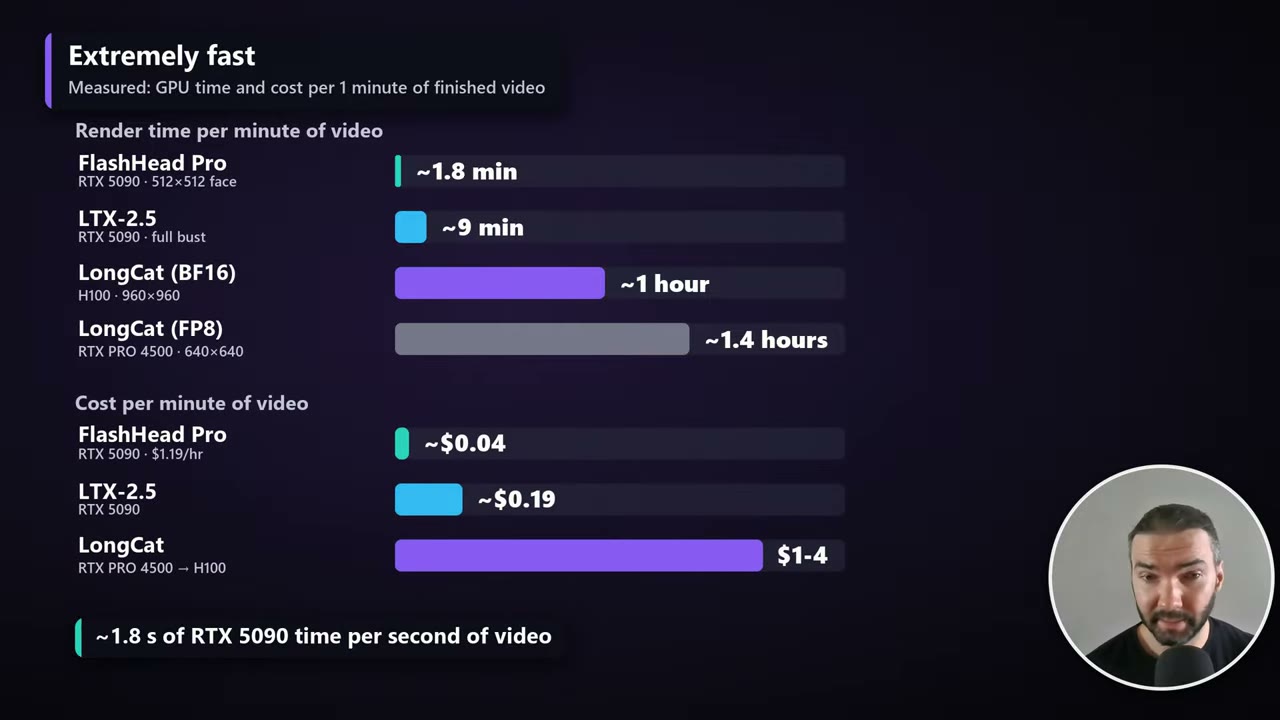
I compare all four of my avatar templates, including MiniMax H3, in a separate guide.
The catch: face only
FlashHead Pro is hard-wired to crop the face. Give it a bust or a half-body portrait and it cuts out a square around the head.

The quality is decent, not outstanding. For the price and the speed, it’s the best I’ve found. It suits long voiceovers where quality matters less than volume, for example a presenter in the corner of the screen.
Run it locally or on RunPod
Everything is free on GitHub. To run it locally in ComfyUI, ask Claude (or any AI) to fetch the files and install them in the order of setup.sh.
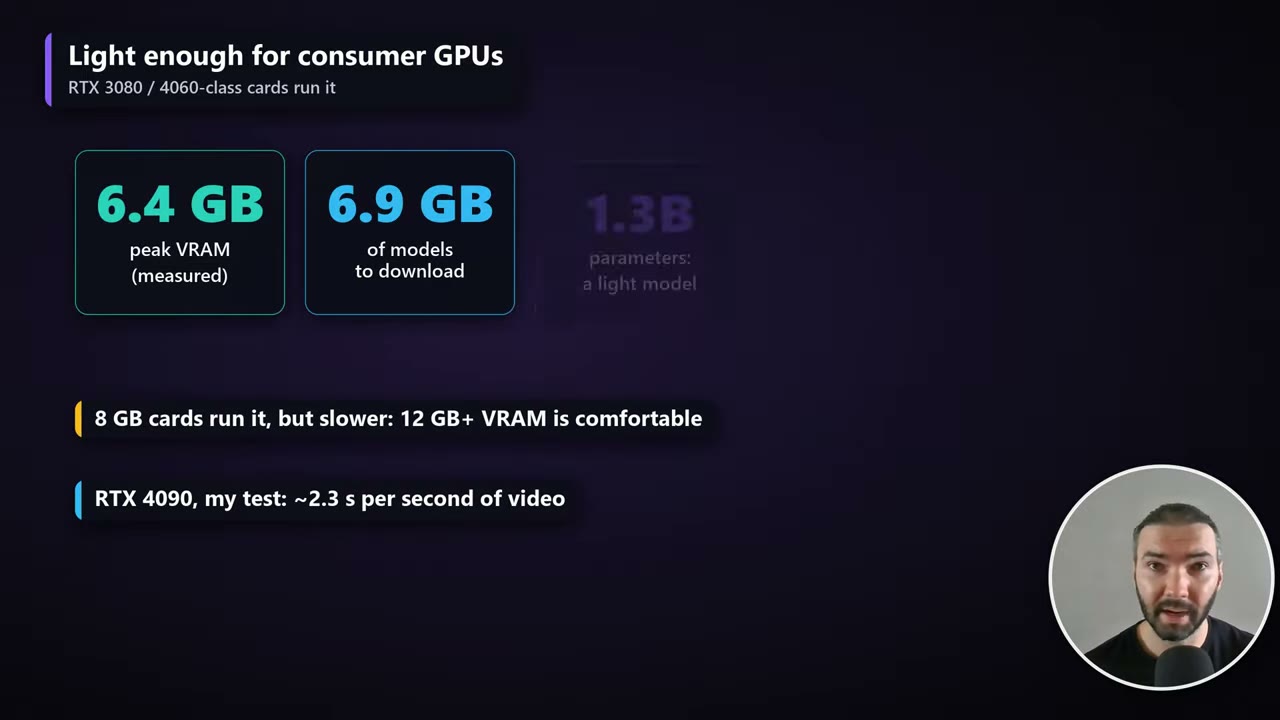
On an 8 GB card it’s slower, because Windows moves part of the model to system RAM. In the video I estimate around 10 seconds of rendering per second of video on a consumer card. The template’s README records 12–79 seconds per second on an 8 GB RTX 3080 Laptop GPU, depending on memory pressure. 12 GB or more is comfortable.
For big jobs, I rent GPUs on RunPod. If you’re new to it, my introduction to RunPod covers the basics.
Set up the pod
Storage: use a Global Volume
Open the template link and click Configure Pod. RunPod offers to create a Network Volume, but I recommend a Global Volume: go to Storage → New volume → Global volume and create it.
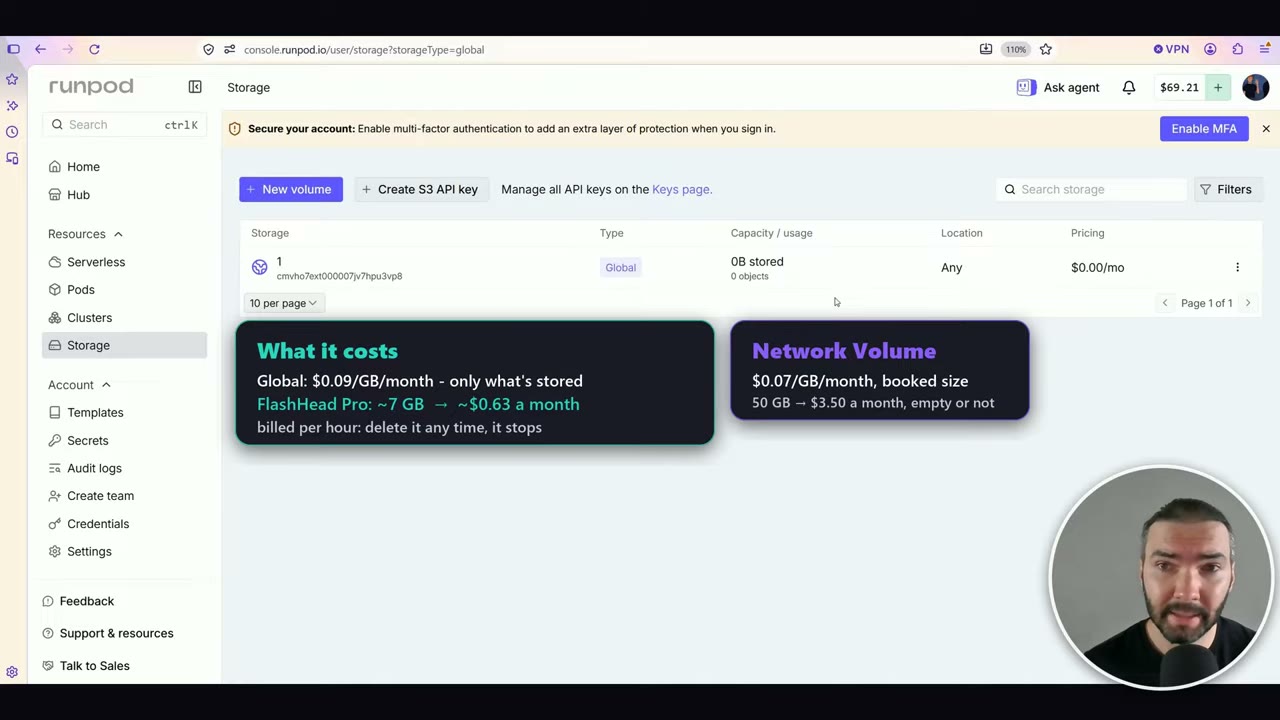
A Global Volume grows with your files instead of making you book 50 or 80 GB up front, and it’s billed by the hour, not for the whole month at once. It can attach to a GPU in any data center, which matters because GPUs are often hard to find on a Network Volume. The one downside: ComfyUI is set up again on each new pod, which takes a few minutes.
| Global Volume | Network Volume | |
|---|---|---|
| Price (October 2026) | $0.09/GB a month, for what’s stored | $0.07/GB a month, for the size you book |
| FlashHead Pro | ~7 GB ≈ $0.63 a month | 50 GB = $3.50 a month |
| Data centers | Any | One |
On the deploy page, the filter still says Network volume and looks empty. That’s confusing, but you’re on the Global Volume anyway, with every GPU available.
Pick a GPU and deploy
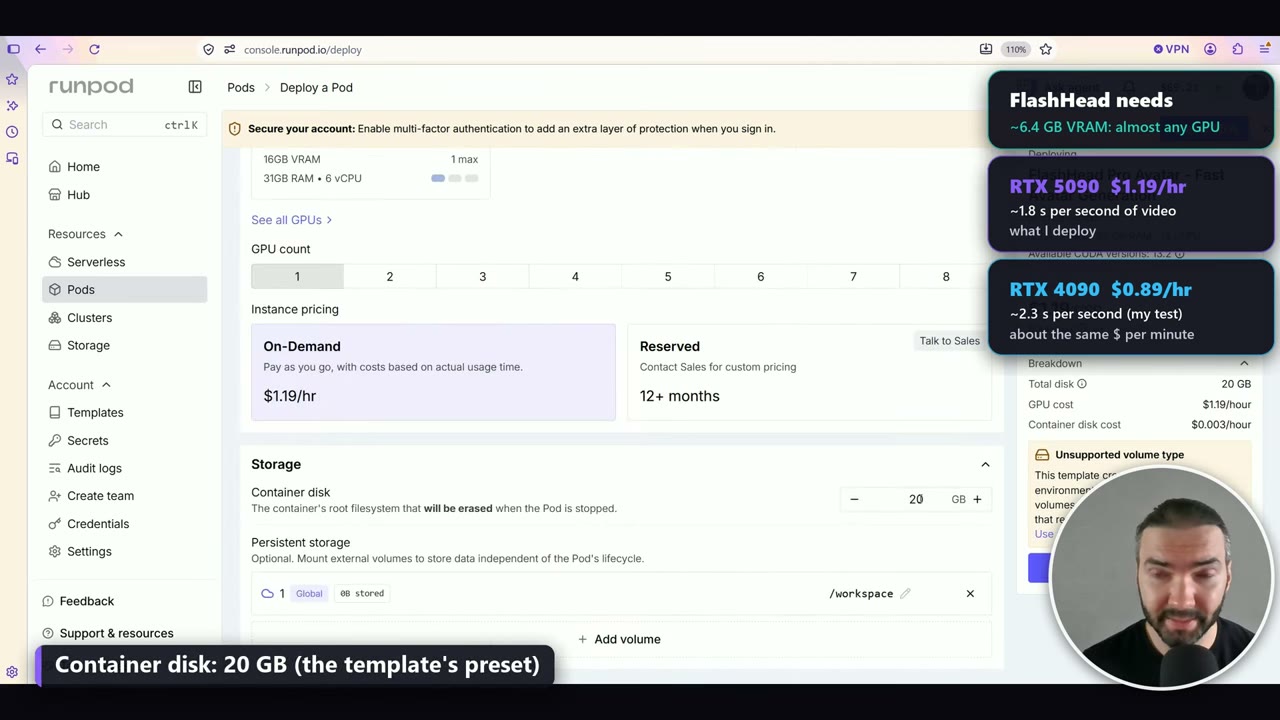
| GPU | Price (Oct 2026) | GPU time per second of video |
|---|---|---|
| RTX 5090 | $1.19/hr | ~1.8 s |
| RTX 4090 | $0.89/hr | ~2.3 s |
The 4090 is slower but cheaper per hour, so the cost per minute ends up about the same. I used the 5090. Leave the container disk at the template’s preset of 20 GB.
Deploy, then follow the setup in the Logs (System and Container tabs). The first boot downloads about 6.9 GB of models, once, so it only takes a couple of minutes. An “Unsupported volume type” warning on the deploy page is safe to ignore with this template.
When ComfyUI says it’s ready, open it from the Connect menu. JupyterLab, your file browser, may keep saying “initializing” even when it’s ready.
The single-voiceover workflow
Open the Workflows sidebar and choose flashhead_pro_1_continuous. It opens on a sample portrait and a sample voiceover, so you can run it straight away, or plug in your own.
The graph is simple: one Render node takes the model, the portrait and the voiceover, and puts out the video.
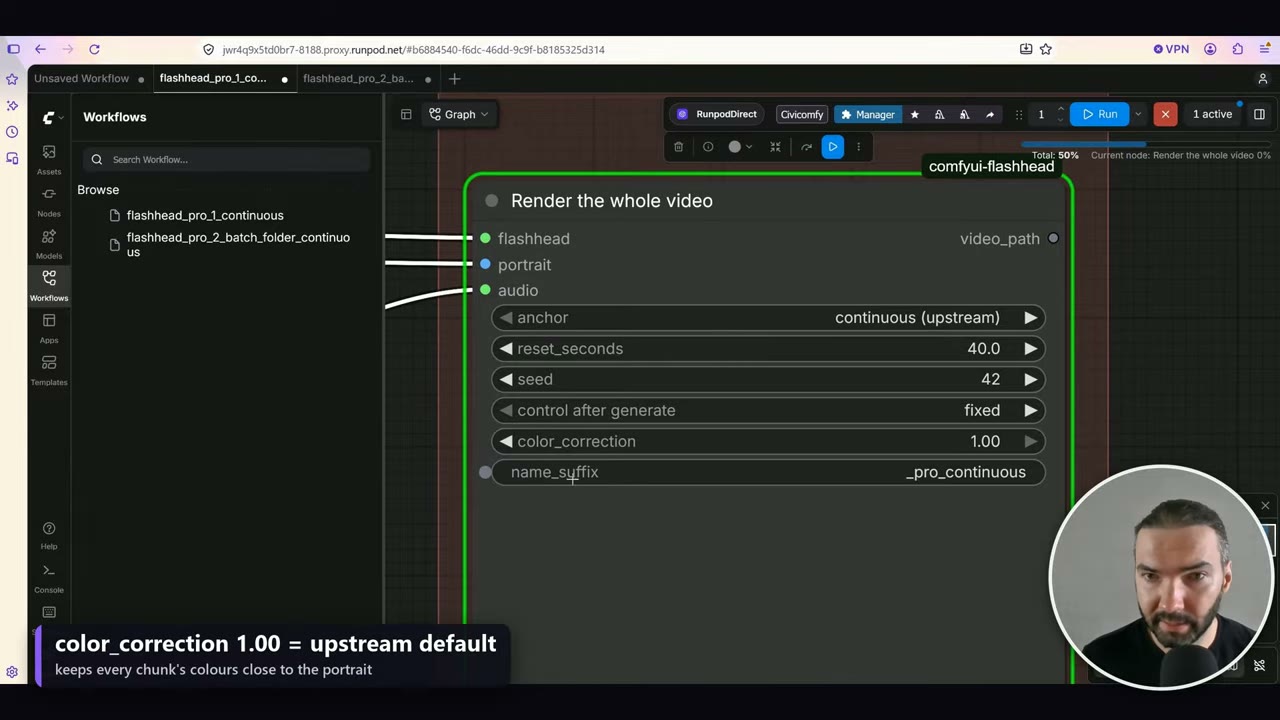
- anchor:
continuous(the default) means every chunk flows on from the one before, and the render never resets to the portrait.reset_secondsis only used by the “refresh at a pause” anchor. - color_correction: 1.00 is the upstream default; it keeps every chunk’s colours close to the portrait.
- name_suffix: the output is named after the voiceover plus this suffix, for example
sample_voiceover_pro_continuous.mp4.
Tip: crop the portrait yourself
The Render node finds the face and cuts a square about twice the face’s width around it. A bust photo loses its shoulders, and the framing can feel a little random.
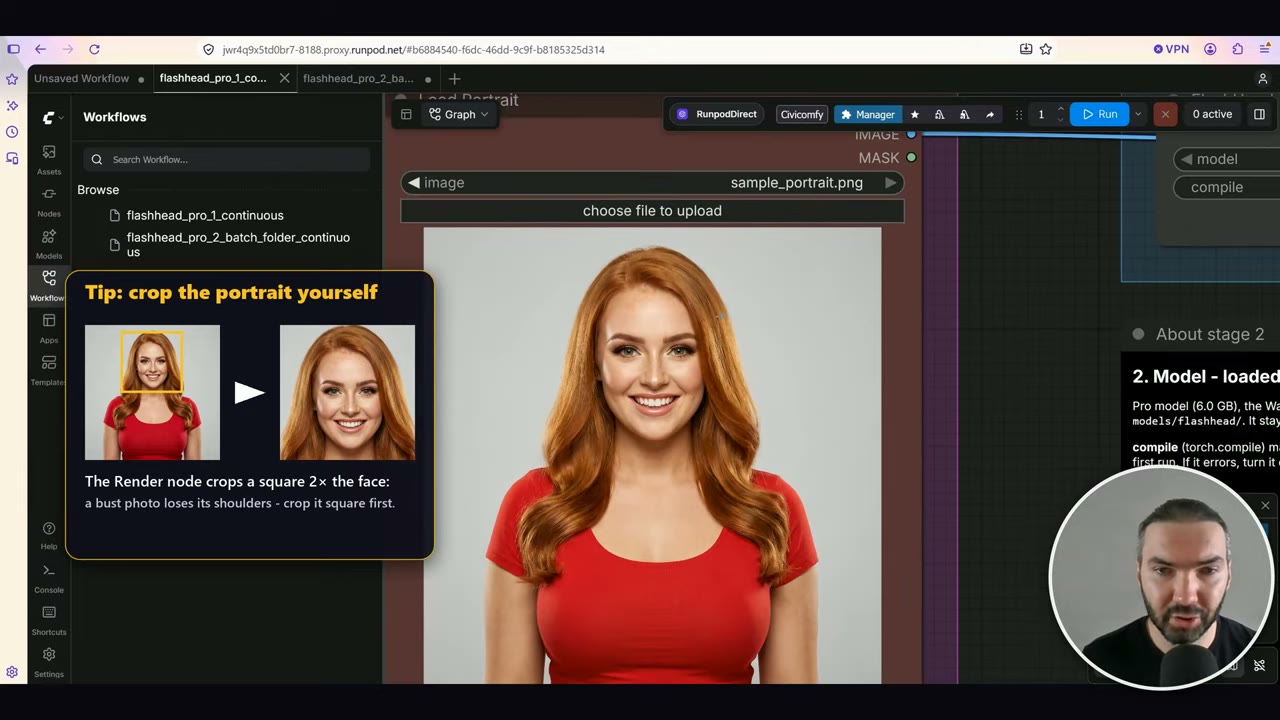
I recommend preparing a square portrait, cropped around the face, before you load it.
Why the first run is slow
The model itself is very fast. The annoying part is starting the task: on a new pod, the first run spends about 4–5 minutes loading the model and compiling it (torch.compile). A one-minute voiceover that renders in two minutes can take six minutes on the first run.
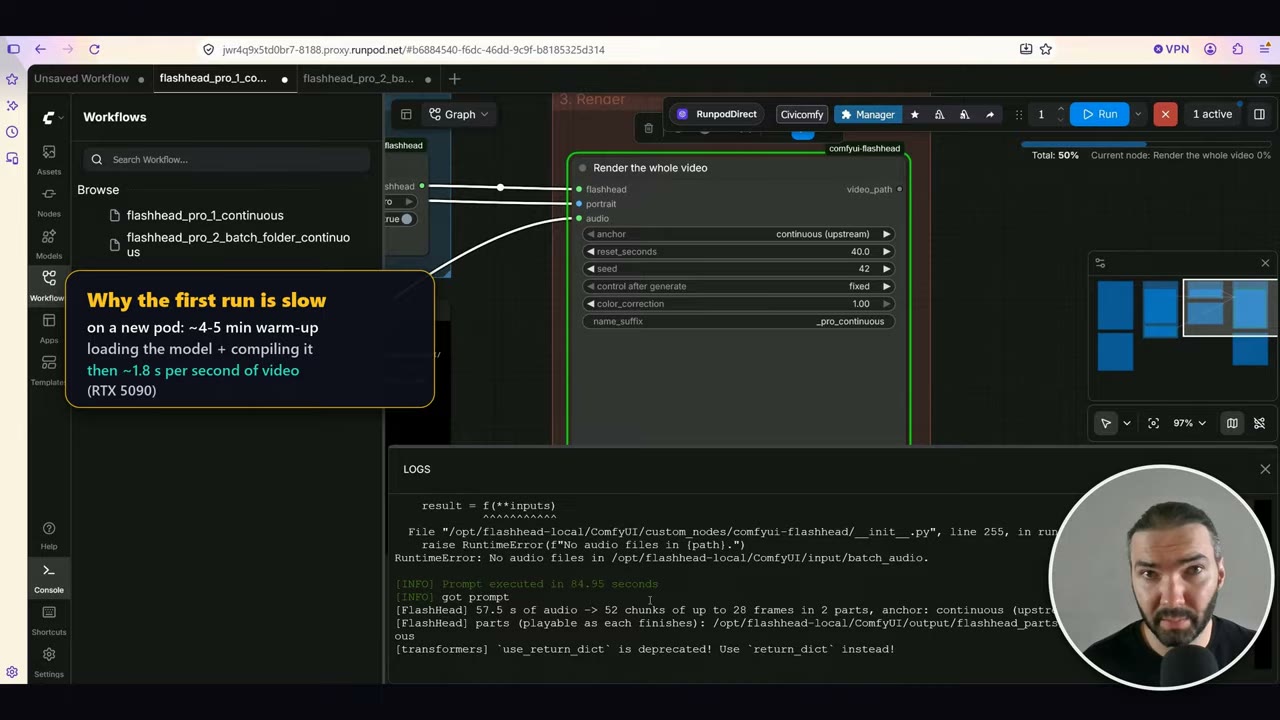
In my test on the RTX 5090, the first run rendered 57.5 seconds of video in 352.5 seconds, most of it warm-up. After that, 28 seconds of video took 51 seconds, peaking at 6.4 GB of VRAM.
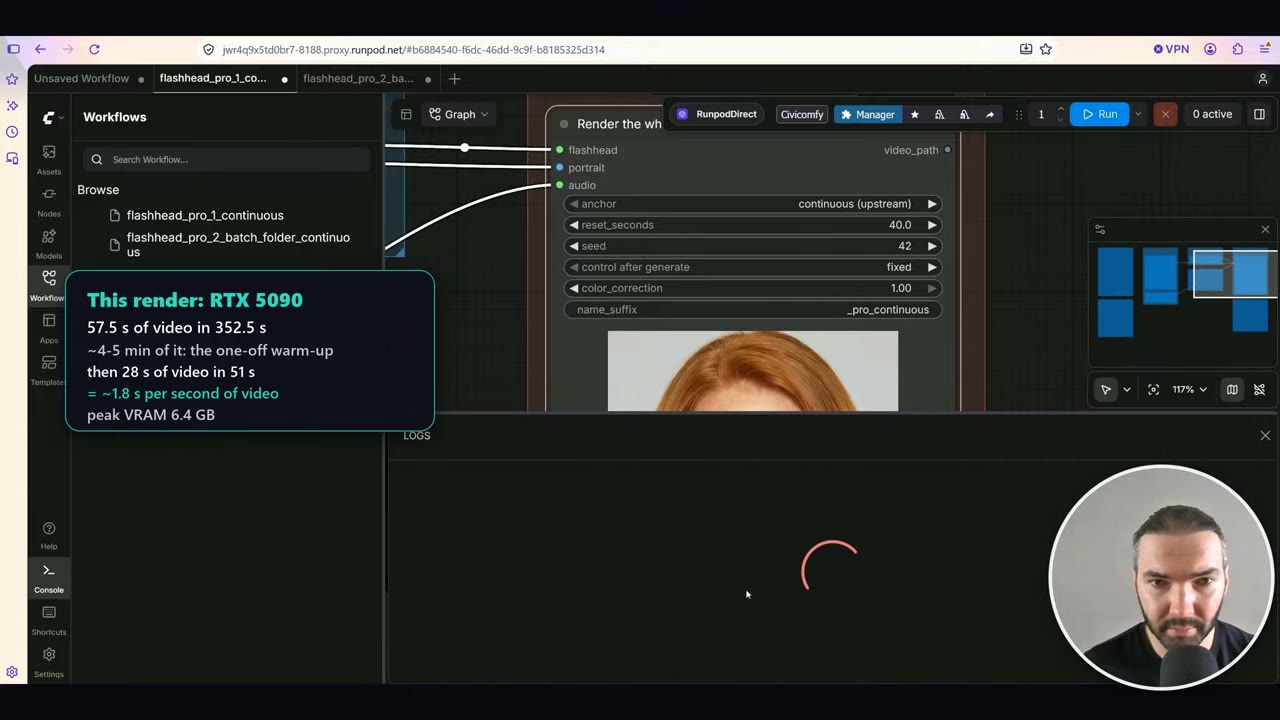
If an error appears in the log as the first render starts, it comes from the batch workflow running on an empty input/batch_audio folder. It doesn’t affect the single render.
This is why FlashHead shines on volume: with an hour of voiceovers, you pay the warm-up once. The finished video is in ComfyUI/output/; open it in JupyterLab to play or download it.
Batch: a whole folder of voiceovers
For many voiceovers, use flashhead_pro_2_batch_folder_continuous. Set the portrait, and it picks up every audio file in ComfyUI/input/batch_audio/ and renders them one by one, one video each. Files already rendered are skipped.
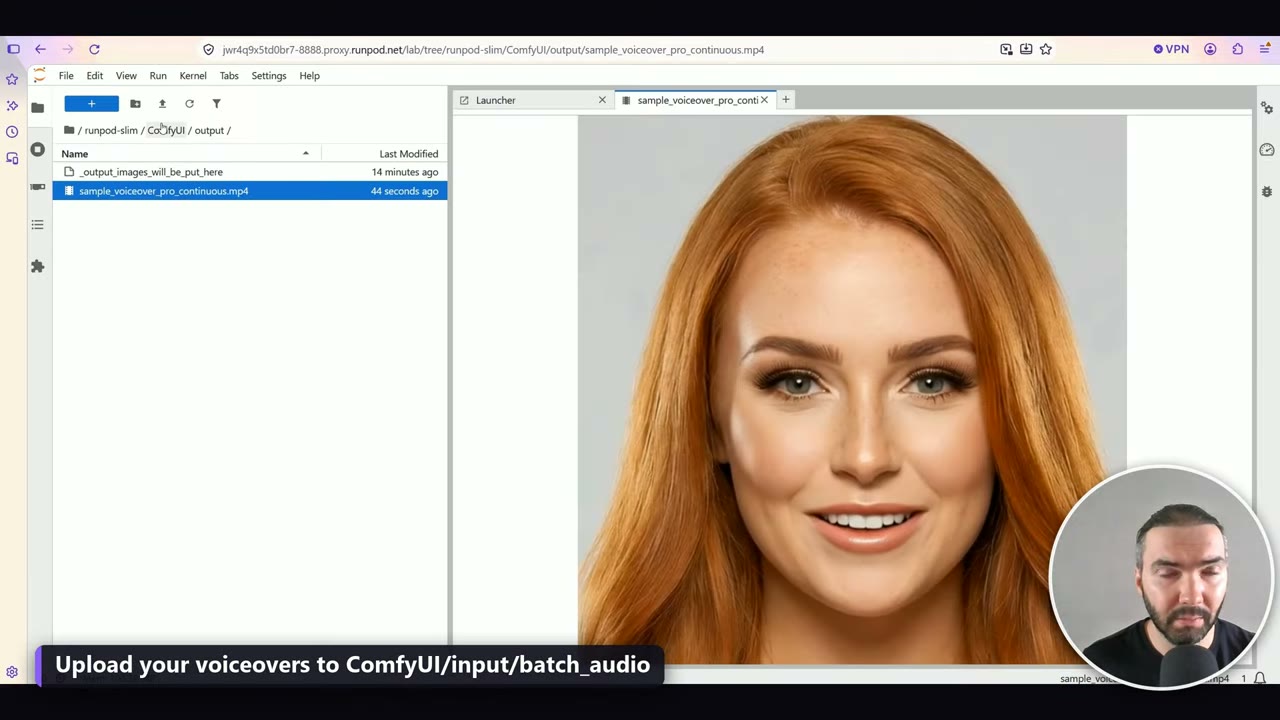
The only settings to touch are the folder and, if you like, the name suffix.
Big jobs: several pods, one folder each
You can make more folders (batch_audio_2, batch_audio_3, or any name) and point each pod’s workflow at its own folder. With a Global Volume, every pod sees the same files, so you can split a really big job across several GPUs.
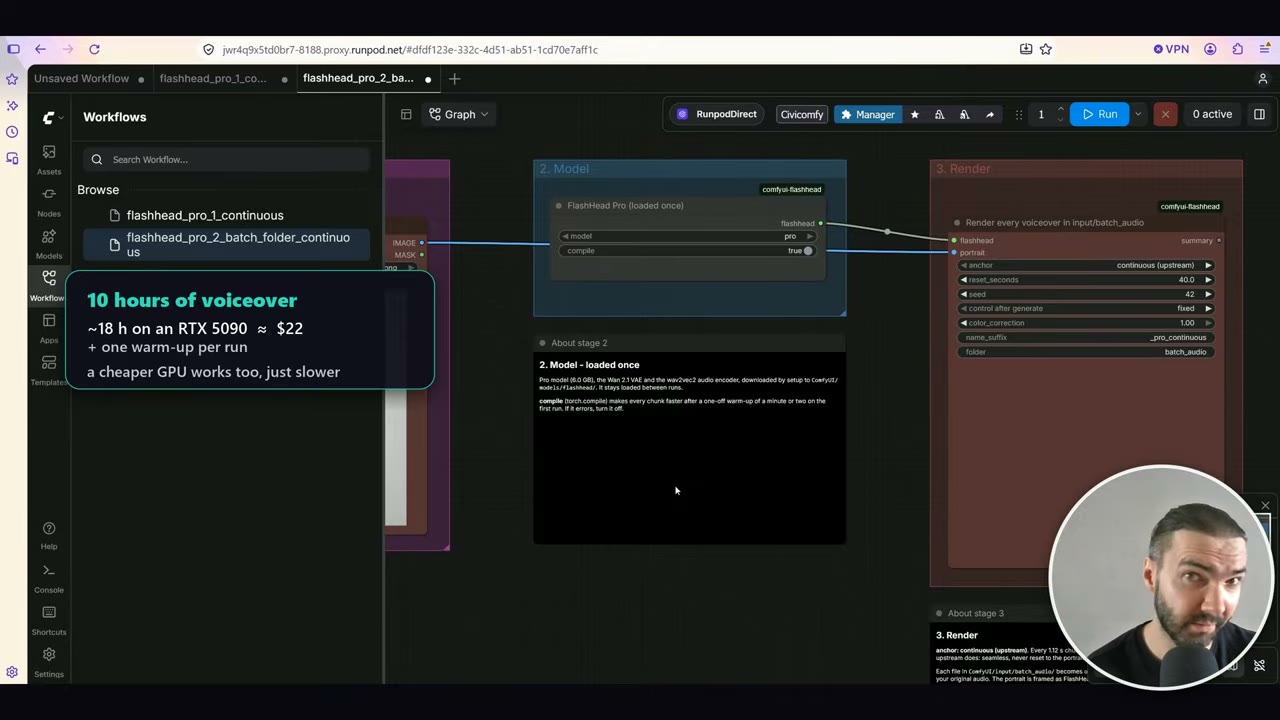
| Voiceover | Render time on an RTX 5090 | Cost (Oct 2026) |
|---|---|---|
| 1 hour | ~1.8 hours | ~$2.20 |
| 10 hours | ~18 hours | ~$22 |
Plus one warm-up per run. A cheaper GPU works too, just slower.
Watching and resuming a long render
According to the template’s README, a long render is saved in parts of about 30 seconds as it goes (output/flashhead_parts/<name>/part_001.mp4 and so on), which you can open while the rest renders. ComfyUI has no pause button: cancel the run, and queuing it again with the same inputs picks up after the last finished part. When all parts are done, they’re joined and the original audio is laid over the whole video.
When you’re done
Go back to the pod in RunPod and click Stop. Don’t leave a finished render running on the GPU bill.
Mistakes to avoid
- Expecting a full bust. FlashHead Pro only renders the face.
- A wide portrait. Crop it square around the face yourself.
- Judging the speed by the first run. The 4–5 minute warm-up is a one-off per run.
- One voiceover per run. Batch them, so you pay the warm-up once.
- Forgetting to stop the pod.
Sign up through my RunPod referral link and you get $5–$500 in RunPod credits. Without a referral link there's no bonus. I get the same bonus and use it for compute.
Watch the video version (7:54)
Everything above is in the video too, if you'd rather follow along on screen.
FAQ
How fast is FlashHead Pro?
On an RTX 5090, after the warm-up, about 1.8 seconds of GPU time per second of video: 28 seconds of video rendered in 51 seconds. On an RTX 4090 it was about 2.3 seconds per second of video.
How much does a minute of FlashHead Pro video cost?
About $0.04 per finished minute on an RTX 5090 at $1.19 an hour (October 2026). An hour of voiceover takes about 1.8 hours, about $2.20, plus one warm-up per run.
Can FlashHead Pro run on an 8 GB GPU?
Yes. It peaks at 6.4 GB of VRAM, so 8 GB cards run it, but slower, because Windows moves part of the model to system RAM. 12 GB or more is comfortable.
Can FlashHead Pro do a full bust or hands?
No. It was trained on 512 × 512 crops of the face, so the output is the face only: no shoulders, no hands.
Why is the first render so slow?
On a new pod the first run spends about 4–5 minutes loading the model and compiling it. After that it renders at full speed, so batching many voiceovers into one run pays off.

Anton Tenitsky is a 3D artist with 15+ years in computer graphics, working with Nickelodeon, Gameloft, Marvel Rivals and many other clients. More about me